Soter support

Occupant web app guide

Use the occupant web app to handle current door alerts, plan expected visits, review what happened at the door, and manage household settings. The sections you see depend on your account permissions.

Screenshots on this page use dummy names, dummy device IDs, and sample household data.
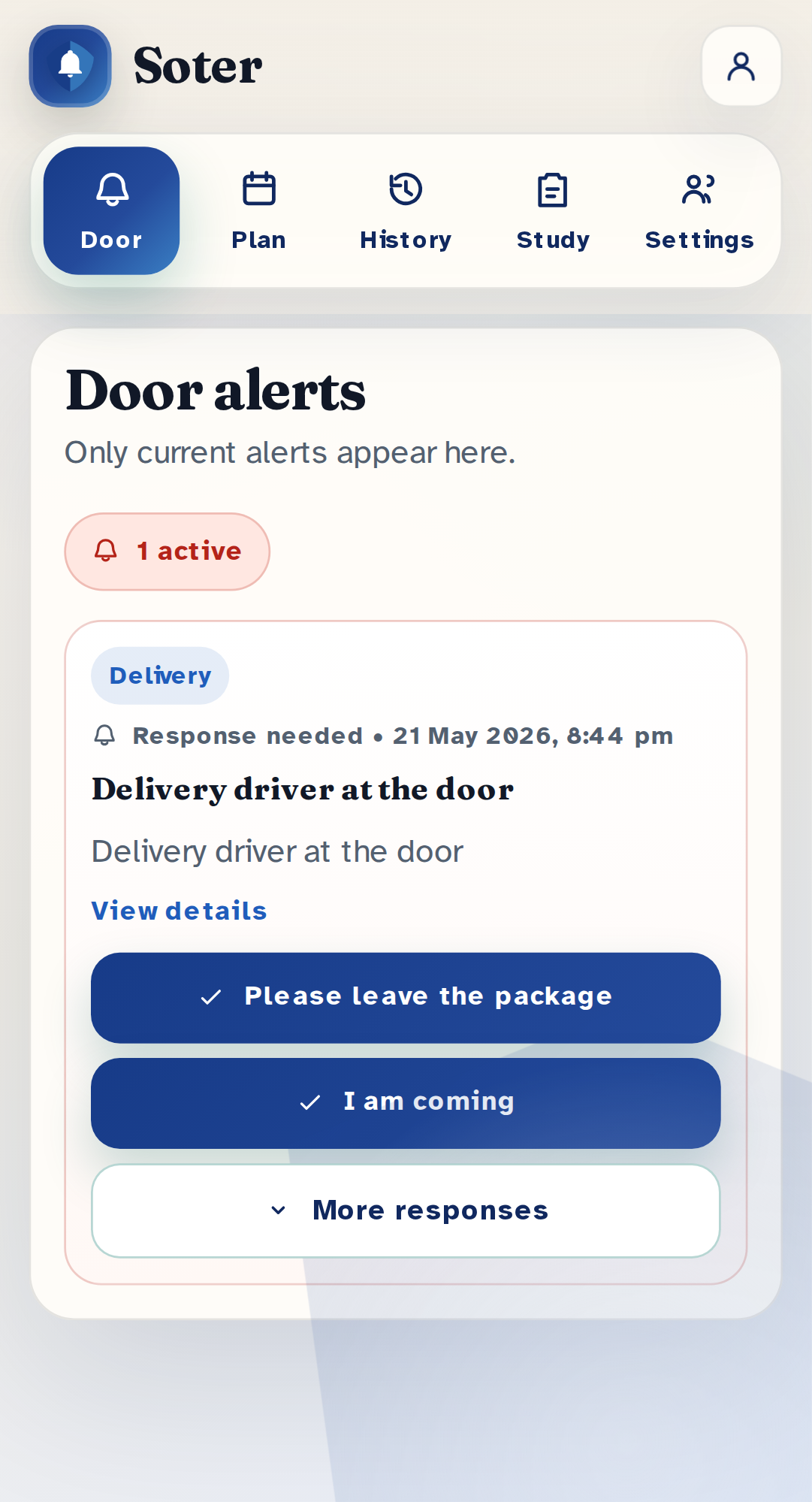
Dummy Soter occupant web app mobile screen

Account access

Permissions

Your account may have been set up with a number of these permission. These can be changed by someone with admin access.

Can see Door page / alerts Adds the Door tab, where current alerts appear and response buttons send a message back to the doorstep unit.
Can set appointments Adds Appointments, including the calendar, expected visitor form, temporary PINs, Edit, and Cancel.
Can see interaction history Adds History, with search, filters, transcripts, visitor details, messages, and scene snapshots.
Pilot: surveys Adds Study, where pilot households complete short surveys, visit logs, weekly feedback, and check-ins.
Can set operating modes Adds Settings access for Operating mode and Stand down until, then saves with Save household settings.
Can view settings pages Adds household settings, linked door units, notification setup, access people, policy, known visitors, and face settings.
Full admin access Acts as all permissions at once. Full admins can see every tab and grant or remove access for other people.

First use

Sign in

Open the Soter occupant app link, enter the invited email address, and choose the correct button for where you are up to.

Sign inLogs in with your email and password.
Set up / reset passwordSends a password email to an invited account. Use this the first time you sign in.
Account buttonOpens the account menu. People with more than one household can switch household there.
Sign outEnds the session on that browser.
Soter
Secure access Email and password sign-in
alex@example.com
********
Sign in Set up / reset password

Can see Door page / alerts

Door alerts

The Door tab shows current alerts only. If there are no active alerts, it will say that everything is quiet.

View detailsOpens the full alert with the scene image, summary, and available responses.
I am comingTells the visitor that someone is coming to the door.
Please waitAsks the visitor to wait while someone responds.
I am not availableTells the visitor the occupant is not available.
Please leave the packageAsks a delivery visitor to leave the package at the saved package location.
Please leaveAsks the visitor to leave.
I do not know this personMarks the visitor as unknown to the household.
Notify someone else / ask for helpRecords that the occupant has asked for help from another person.
Custom messageLets you type a short message for Soter to pass to the visitor.
DismissCloses an information-only alert after you have read it.
Delete alertRemoves the current alert. Interaction history is not deleted.
Soter Alex
Door Appointments History
Door alerts 1 active
Visitor scene
Response needed Courier with medication parcel

Visitor says they have a delivery for Pat.

I am coming Please wait More responses

Can set appointments

Appointments

Appointments tell Soter who is expected and when. This helps with support visits, recurring care, deliveries, and temporary PIN checks.

AddOpens a new appointment form. The selected day is used if you pressed Add beside a calendar day.
Previous / NextMoves the calendar backward or forward by month.
Calendar daySelects a day so you can see or add expected visitors for that date.
EditOpens an existing appointment so you can change times, visitor details, notes, repeat settings, or PIN.
CancelOn an appointment card, marks that appointment as cancelled. In the form, closes without saving.
Add appointmentSaves a new appointment.
Save appointmentSaves changes to an existing appointment.
Appointments Add
Previous May 2026 Next
MonTueWedThuFriSatSun
10:30 AM to 11:15 AM Rina, community nurse

Weekly wound dressing. Temporary PIN saved.

Edit Cancel

Can see interaction history

Interaction history

History is for past interactions. Use it when you want to check who came, what they said, what Soter did, and whether any message needs to be passed on.

Search and filterOpens search, type, date, outcome, and sort controls.
Clear filtersResets search and filters back to the full list.
Previous / NextMoves between pages when there are many interactions.
History cardSelects one interaction and opens its details.
Back to historyReturns from the details view to the list on smaller screens.
Refresh detailsAsks Soter to refresh the extracted title, visitor details, and message summary.
History Browse previous door conversations.
Search and filter 12 of 14 matches
Search: pharmacy Type: Delivery Date: Last 7 days Sort: Newest first
Delivery - Today 11:42 AM Pharmacy courier

Left a medication parcel in the porch box.

Known visitor - Yesterday Moana from home help

Verified by appointment.

Pilot: surveys

Study and surveys

Pilot households may see the Study tab. It is for short research surveys and visit logs. Each invited household member can have their own response.

StartBegins a waiting survey from the main survey inbox.
AnswerOpens a survey from the side list of surveys to finish.
ReviewOpens a completed survey for checking.
Next / PreviousMoves through survey questions in the survey window.
Save surveySaves the final survey response.
Manual or researcher entryOpens the manual visit log form for visits Soter missed or for assisted completion.
New blank logClears the visit log form for a new entry.
Start from latest Soter visitPrefills a log from the newest detected interaction.
Save visit logSaves a completed visit log.
Save as draftSaves a partial visit log to finish later.
Save weekly feedbackSaves the weekly pilot feedback form.
Save reminder preferenceSaves whether and when the household wants survey reminders.
Interaction surveys 8 visits
Soter trial - Survey notifications are enabled.
Door interaction Courier at front door

Today 11:42 AM - Package delivery

Start
Manual or researcher entry New blank log Start from latest Soter visit

Can set operating modes

Operating modes

Operating modes are on the Settings page.

Soter should be left in Normal mode. Quiet Mode is used when generating a baseline report: Soter will still record faces, but not listen or engage in a conversation. Privacy stand down does not record anything.

Operating modeChoose Normal mode, Quiet stand-down, Privacy stand-down, or Support mode.
Stand down untilSets the end time for quiet or privacy stand-down. This is disabled when the mode is Normal mode.
Save household settingsSaves the operating mode change.
Household profile and operating mode
Save household settings

Can view settings pages

Household settings

This permission adds the wider Settings page. It is for household admins and trusted support people because changes can affect alerts, recognised visitors, and access for other users.

EnableTurns browser push notifications on for the selected door unit.
Debug modeShows Firebase IDs and technical metadata in History. Leave it off unless supporting a problem.
Linked door unit chipSwitches which door unit the app is viewing when a household has more than one.
Save household settingsSaves profile, package location, operating mode, trigger mode, door sensor, address, and notes changes.
Save access personAdds or updates a person who can sign in to the occupant app.
EditLoads an access person into the form so their permissions can be changed.
RemoveRemoves an access person from this household.
Add doorbell windowAdds a scheduled window where the doorstep unit can use a doorbell button instead of face detection.
Save windowsSaves trigger schedule windows.
Save policySaves doorstep decision policy rows and overrides.
Reset defaultsReturns policy or face settings to default values.
Load householdLoads face recognition records for the selected org and household.
Label faceAssigns an unmatched visitor capture to a known person.
Dismiss selectedMarks selected captures as not useful visitor captures.
Delete selectedDeletes selected unmatched captures.
Create personAdds a known person or visitor record.
Save changesSaves edits to the selected person.
Delete personDeletes the selected person and related face records.
Settings, people, and known visitors 12 people
Door units and notifications

Viewing alerts from Front door unit.

94cdbde7e303d9b9 Enable
Occupant app access

alex@example.com - Can see Door page / alerts - Can set appointments

Edit Remove

Full admin access

Full admin

Full admin access is the highest occupant-web permission. A full admin can see every tab and is treated as having every individual permission, including future permissions added to the app.

Good practice

Give full admin access only to people who should be able to change household settings and manage other users. For most family members, carers, or support people, choose the individual permissions they actually need.

Permission checkboxesChoose exactly which sections a person can use.
Full admin accessOverrides the individual section permissions and grants everything.
Notification deliveryControls whether that person should receive app, email, SMS, or phone alert routing when those channels are enabled.
Save access personSaves the person, mirrors their household membership, and lets them set up a password.