Occupant app guide
Occupant app access
Each person gets their own sign-in and only the pages they need — the occupant, family, and carers all see a different app.
One household, many people, different views
Soter is shared by everyone who helps look after the doorstep, but not everyone needs the same powers. Settings → Occupant app access lists each person with their own login email and a set of switches. The app then shows each person only the tabs and controls their switches allow — which is why the occupant's phone might show two tabs while their daughter's shows five.
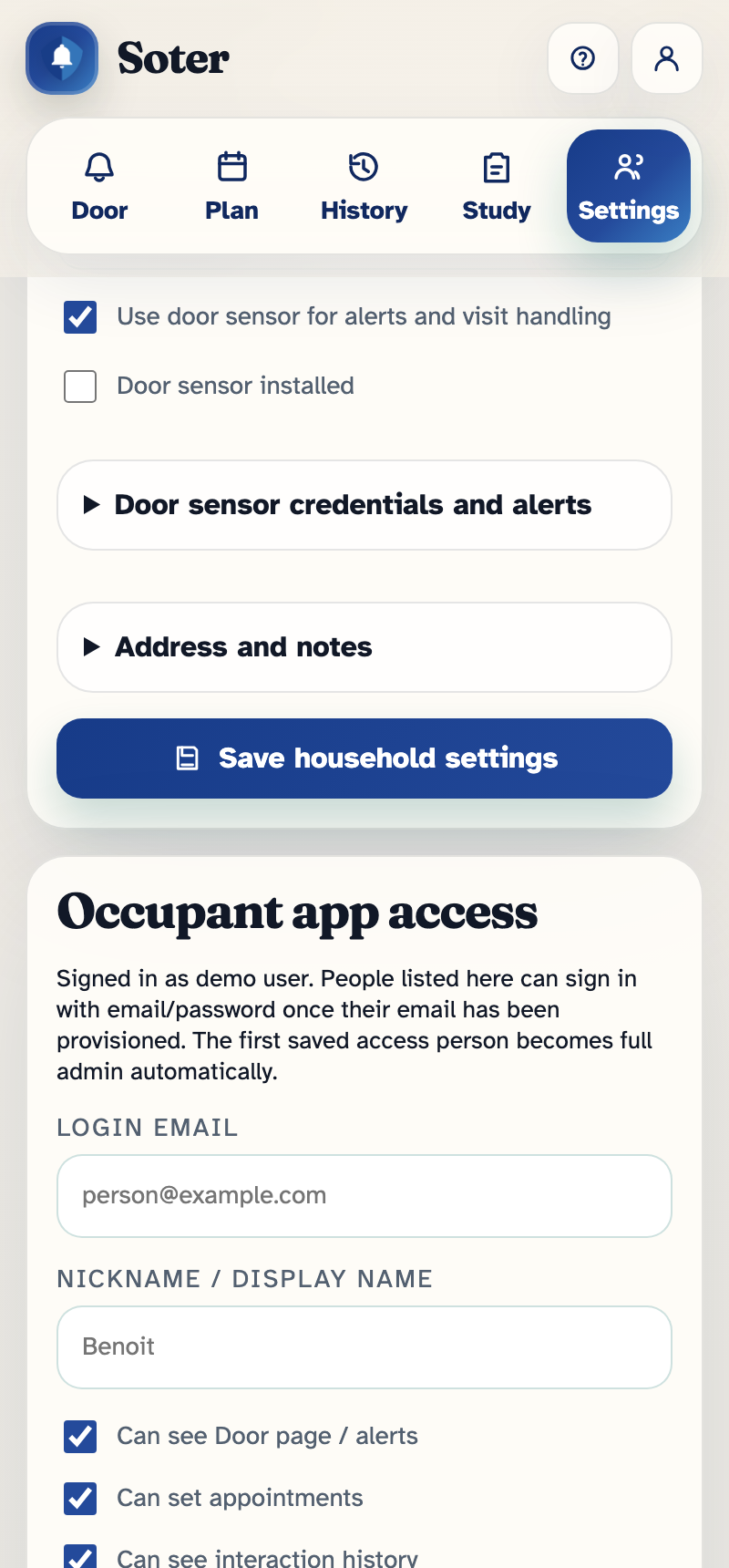
The permissions, one by one
| Permission | What it unlocks |
|---|---|
| Can see Door page / alerts | The Door tab: this person receives decision requests and can respond to visitors. Without it, they're never interrupted by the doorstep. |
| Can set appointments | The Plan tab: create and manage appointments and temporary PINs. |
| Can see interaction history | The History tab: full visibility of past visits, transcripts, and photos. |
| Can set operating modes | The operating mode and "stand down until" controls — and Settings access to reach them. A carer can stand Soter down for personal care without seeing anything else. |
| Can view settings pages | The Settings tab: household profile, door units, people, policy, and known visitors — read access. |
| Full admin access | The keys: edit the doorstep policy, manage known visitors, and change other people's access, including adding and removing accounts. |
| Pilot: surveys | The Study tab, for households taking part in the trial. |
| Push notifications enabled | Whether alerts push to this person's devices. Turned off, they can still open the app and see everything their other permissions allow — they just aren't pinged. |
New people start with everything on except Full admin access — trim from there to fit the person.
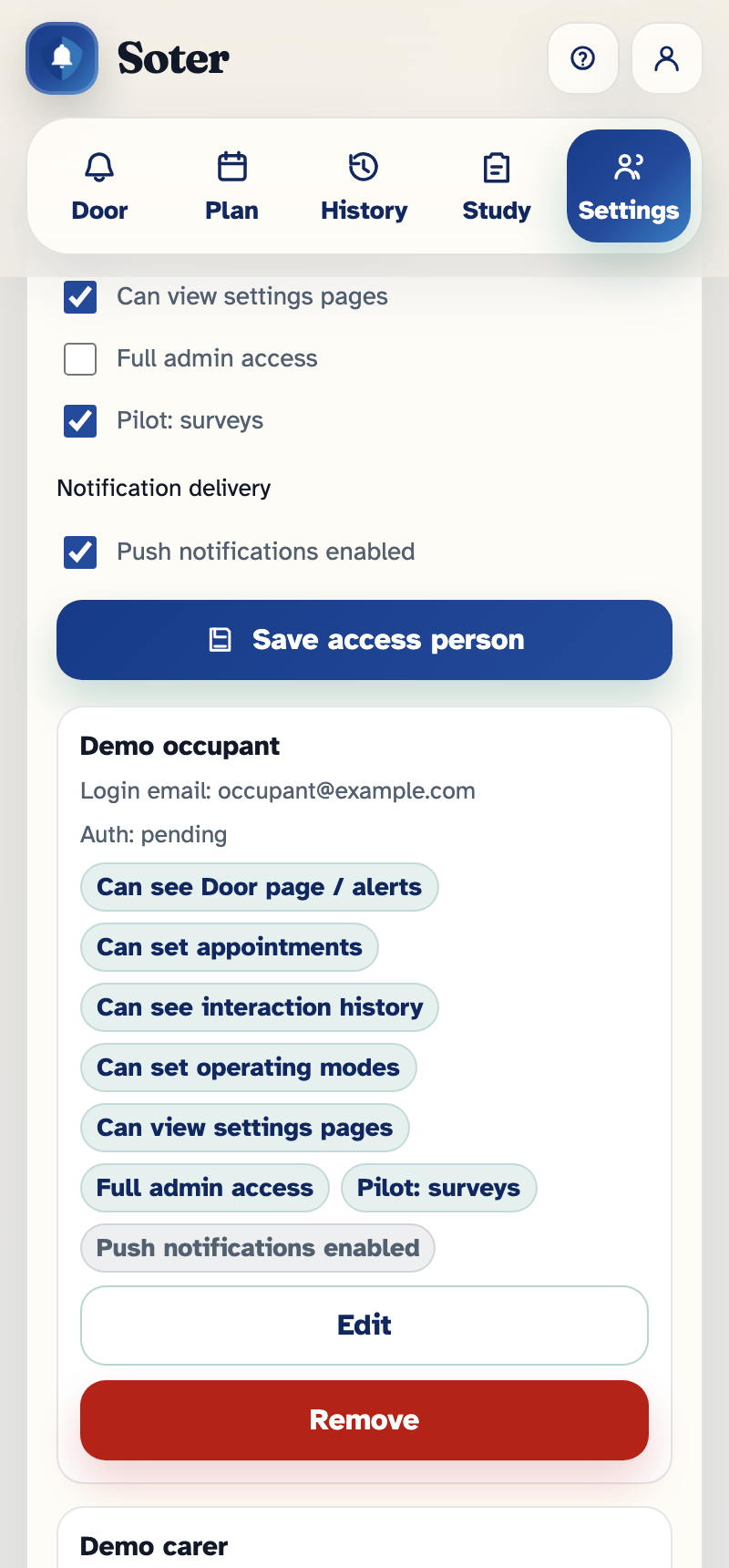
Saved people appear below the form, each showing exactly what they can do:
Typical setups
- The occupant — Door alerts, appointments, history; often not the settings pages, to keep their app simple.
- A remote family member — everything including full admin: they're the household's administrator from afar.
- A visiting carer — door alerts and operating modes only: they can answer the door and stand Soter down during care, nothing else.
- A backup contact — door alerts only, with push on: they exist purely as a Level 2 escalation target.
Practical notes
- Each person signs in with their own email and password — no shared logins, so History shows who responded to what.
- Display name is how the person appears in recipient lists and alerts ("Sarah", not an email address).
- Personal comfort settings — text size, alert sound — live with the person, not the household, so Margaret's extra-large text doesn't change Sarah's phone.
- Removing a person removes their access immediately; their past responses remain in History.