Occupant app guide
The doorstep decision policy
The rulebook Soter follows at your door: who gets welcomed, who gets screened, who decides, and what gets recorded — visit type by visit type.
The idea in one paragraph
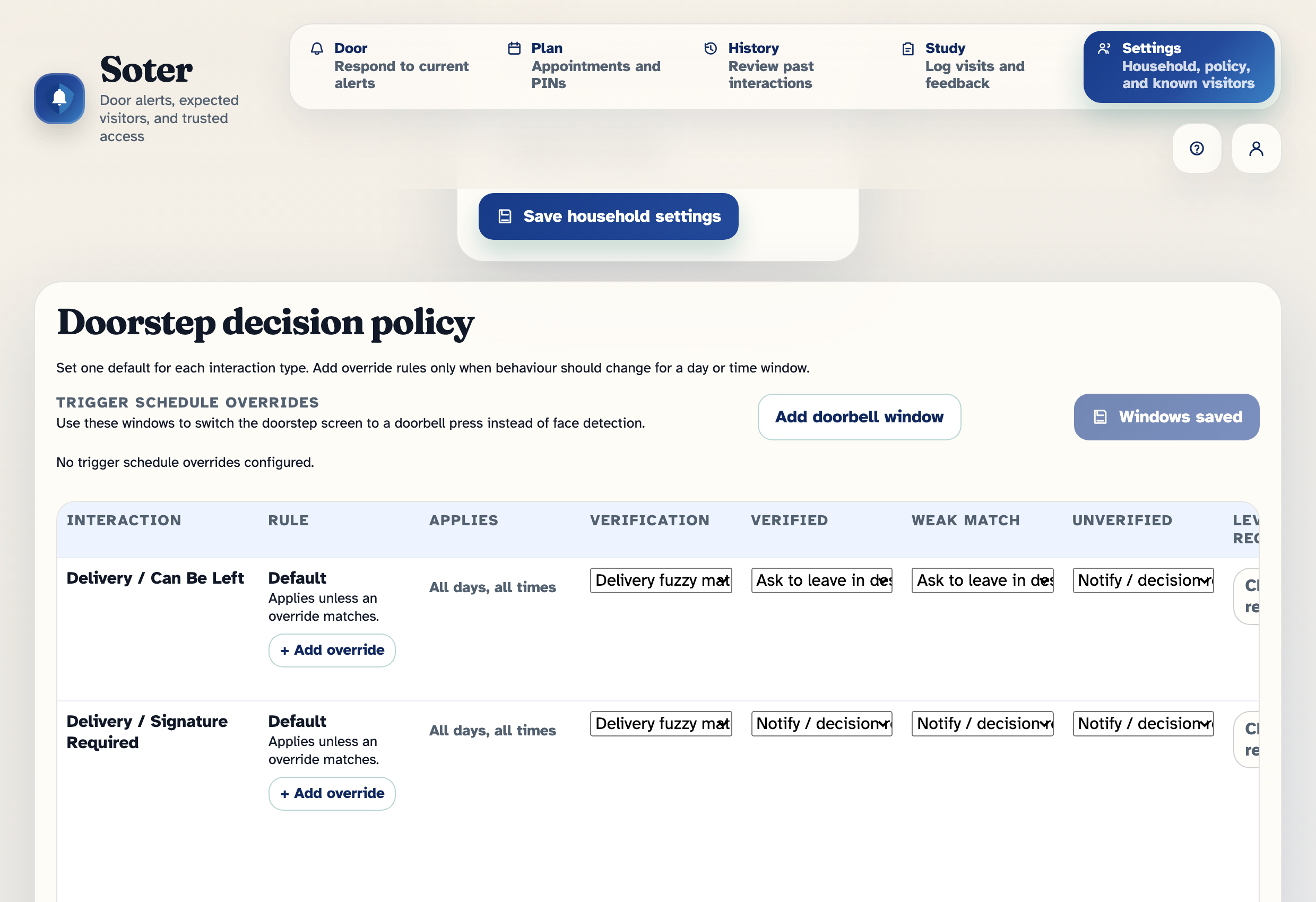
Every doorstep visit is different, but they fall into predictable kinds: a delivery, a friend, a stranger, someone claiming to be police. The doorstep decision policy is a table — one row per kind of visit — that tells Soter, in advance, how your household wants each kind handled: how to check who the visitor is, what to do when the check succeeds or fails, who to tell, what the visitor can be told in reply, what to record, and how long to keep it. When someone arrives, Soter identifies the kind of visit, finds the matching row, and follows it. That's the whole system — the power is in filling the table in to match your household.
You'll find it in Settings → Doorstep decision policy. It ships with sensible defaults, so you only need to change the rows you care about. It is much easier to edit the decision policy matrix on a computer screen - it is possible on a phone but the narrow screen is less than ideal.
The kinds of visit
| Visit type | What it covers |
|---|---|
| Known individual (one row per person) | Someone your household has enrolled as a known visitor — each person gets their own row, so the gardener and the nurse can be treated differently. |
| Delivery — can be left | Parcels and drops that don't need anyone: the courier can leave them in your designated place. |
| Delivery — signature required | Deliveries that need a person: signatures, pharmacy items, chilled food. |
| Unknown visitor — with appointment | A stranger whose story matches an appointment you created. |
| Unknown visitor — without appointment | A stranger with no appointment: cold callers, canvassers, unexpected knocks. |
| Emergency services claim | Anyone claiming to be police, fire, or ambulance. Treated specially: Soter can never verify such a claim, so this row always notifies people urgently. |
How Soter checks who's there (verification)
Each row has a verification method, matched to the visit type:
| Visit type | Available checks |
|---|---|
| Known individual | Face recognition, a personal PIN, or either. |
| Deliveries | Delivery matching — Soter compares what the courier says (recipient name, courier company, package details) against your household's delivery settings. |
| Unknown visitor with appointment | Appointment matching (does their story fit the appointment?), a temporary appointment PIN, or either. |
| Unknown visitor without appointment | None — there is nothing to check against. |
| Emergency services claim | None — always treated as unverified. |
Verification produces a result: Verified (confident match), Weak match (plausible but not certain — the name was close, the face was partly visible), or Unverified. There's also a Failed case for when a check actively fails, like a wrong PIN.
What Soter does (actions)
For each verification result, the row says what action to take:
| Action | What happens at the door |
|---|---|
| Trusted entry | The visitor is welcomed through — no interruption to anyone. For known individuals you trust completely. |
| Ask to leave in designated place | (Deliveries only.) Soter directs the courier to your package spot and logs the drop. |
| Notify / decision request | Soter keeps the visitor engaged and sends the household a door alert to decide. |
| Decline with notification | Soter politely turns the visitor away and tells the household it happened. |
| Decline silently | Soter turns the visitor away and just logs it — no interruption. For households tired of hearing about every canvasser. |
A worked example
Here's the default behaviour for three common visits, straight from the shipped policy:
| Verified | Weak match | Unverified | |
|---|---|---|---|
| Jim (known gardener) | Trusted entry | Decision request | Decision request |
| Delivery — can be left | Leave in designated place | Leave in designated place | Decision request |
| Unknown visitor, no appointment | — | — | Decline with notification |
So: Jim gets greeted by name and waved through; a courier Soter can match gets pointed at the parcel box without bothering anyone; and an unexpected stranger is politely declined while the family gets a note. Change any cell and Soter changes its behaviour at the door.
Who gets told, and when (escalation)
Each row has two recipient lists and a timer:
- Level 1 recipients — told first when this row raises an alert.
- Level 2 recipients — the backup, told if nobody in Level 1 responds within the escalation delay.
- Escalation delay — default 180 seconds; emergency-services claims default to 60.
This is per-row, so overnight deliveries can go straight to the son who works nights, while daytime unknown visitors go to Mum first and her neighbour second.
What the household can reply (response options)
Each row lists the response options offered when an alert fires, and marks up to two as primary — the big buttons. Deliveries lead with "Please leave the package"; unknown visitors lead with "Please leave" and "Tell someone else". The full list of responses is in the Door alerts chapter.
What gets recorded (capture and retention)
Privacy is set per row, not globally:
- Capture level — from None and Metadata only (time and outcome), through Text transcript and Selected images or Scene description only, up to Standard (metadata + transcript + selected images or a scene summary).
- Retention — delete after 24 hours, 7 days, or 30 days; keep until manually deleted; or follow the pilot research retention policy during the trial.
A household might keep standard records of unknown visitors for 30 days but only metadata for a trusted daily carer. Two further per-row switches for known individuals: Greet by name (should Soter use their name?) and Purpose required (must they say why they've come, even though they're recognised?).
Different rules at different times (overrides)
Every row has a Default version that applies at all times — and you can add scheduled overrides that take precedence during a window you choose: days of the week (weekdays, weekends, or specific days) plus start and end times.
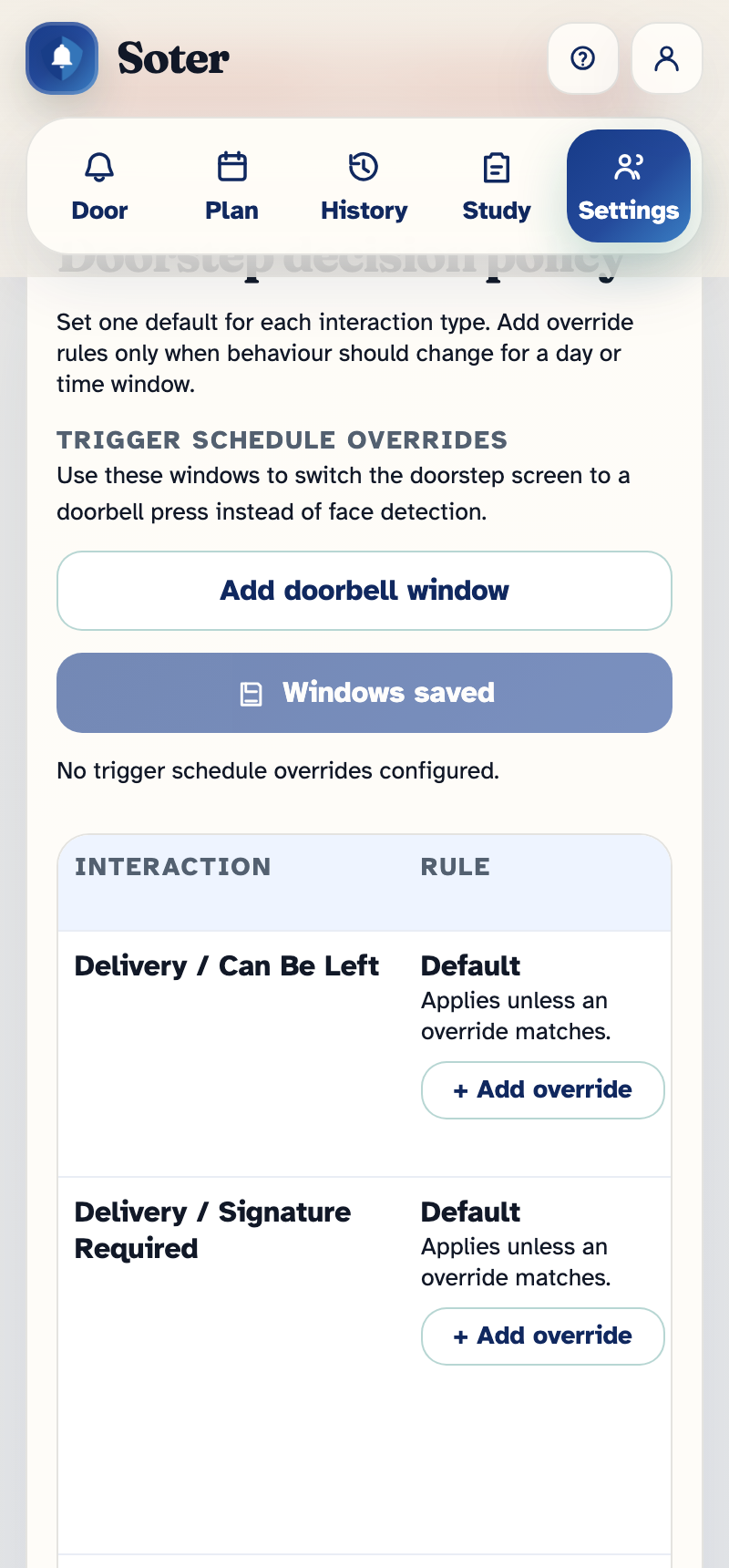
A classic use: during the day, unknown visitors are declined with a notification; overnight, an override declines them silently and routes anything urgent straight to the night-owl daughter with a shorter escalation timer.
How a decision actually happens
When a visitor arrives, Soter works through, in order:
- Operating mode — if the household is stood down, stop here.
- Identify the visit type — from the conversation, face recognition, appointments, and delivery details.
- Pick the row — the matching override if one is scheduled for right now, otherwise the Default row.
- Verify — run the row's check and score it Verified, Weak match, Unverified, or Failed.
- Act — take the row's action for that result, offer the row's responses, notify the row's recipients, escalate on the row's timer.
- Record — at the row's capture level, kept per the row's retention.
The chosen plan is saved with the interaction, so History can always show you not just what happened, but why — which row, which verification result, which action.
Who can edit the policy
Viewing Settings requires Can view settings pages; editing the policy is for accounts with Full admin access. During the pilot, the Intermentis team is happy to make policy changes with you — just ask.