Occupant app guide
Door alerts
What an alert looks like, how to respond with one tap, and what happens if nobody answers.
When does Soter send an alert?
Soter greets the visitor, works out who they are and why they've come, and — depending on your doorstep policy — may handle it silently and simply logs it. You get an alert when the policy says a human should decide: an unknown caller, a delivery that needs a signature, a visitor claiming to be emergency services, or anything Soter isn't sure about.
An alert is called a decision request because that's what it is: Soter is standing at the door with the visitor, asking you what to do.
You can receive and respond to alerts via any Soter indoor unit or connected smart speakers that are paired with your installation.
Anatomy of an alert
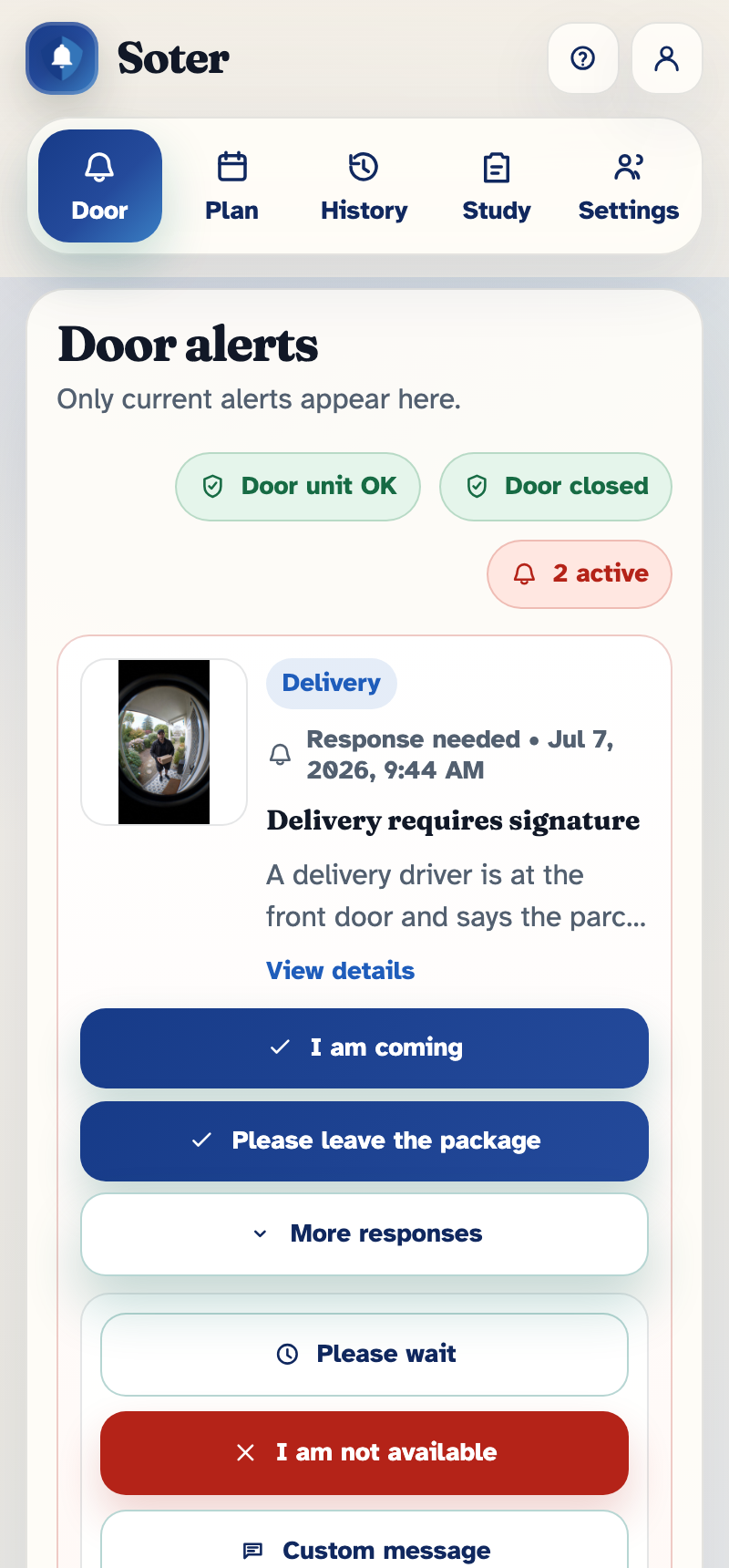
Each alert shows:
- Who Soter thinks is there — a recognised person's name, "Courier", "Unknown visitor", and so on.
- What they said — the important part of the conversation so far, often with a photo or a short description of the scene.
- Response buttons — one tap sends your answer back to the doorstep, where Soter speaks it to the visitor.
Responding
The two or three big buttons are the primary responses — the answers most likely to be right for that kind of visit. They come from your doorstep policy, so a delivery alert leads with "Please leave the package" while an unknown-visitor alert leads with "Please leave". Behind More options you'll find the full set for that visit type:
| Response | What Soter tells the visitor |
|---|---|
| I am coming | The occupant is coming to the door. |
| Come in | The occupant says you can come in. |
| Please wait | Please wait. |
| I am not available | The occupant is not available right now. |
| Please leave the package | Please leave the package in the designated place. |
| Please leave | Please leave. |
| I do not know this person | The occupant does not know this person. |
| Tell someone else | Soter passes the request to another household contact. |
| Custom message | Type exactly what you want Soter to say, then press Send message. |
If you have an indoor unit or smart speaker connected, you can respond by voice too — if you're near a device that's listening, saying something like "tell them to wait" works the same as pressing the button. Responding or dismissing an alert on one device or app will clear it from the active alerts on all devices or apps.
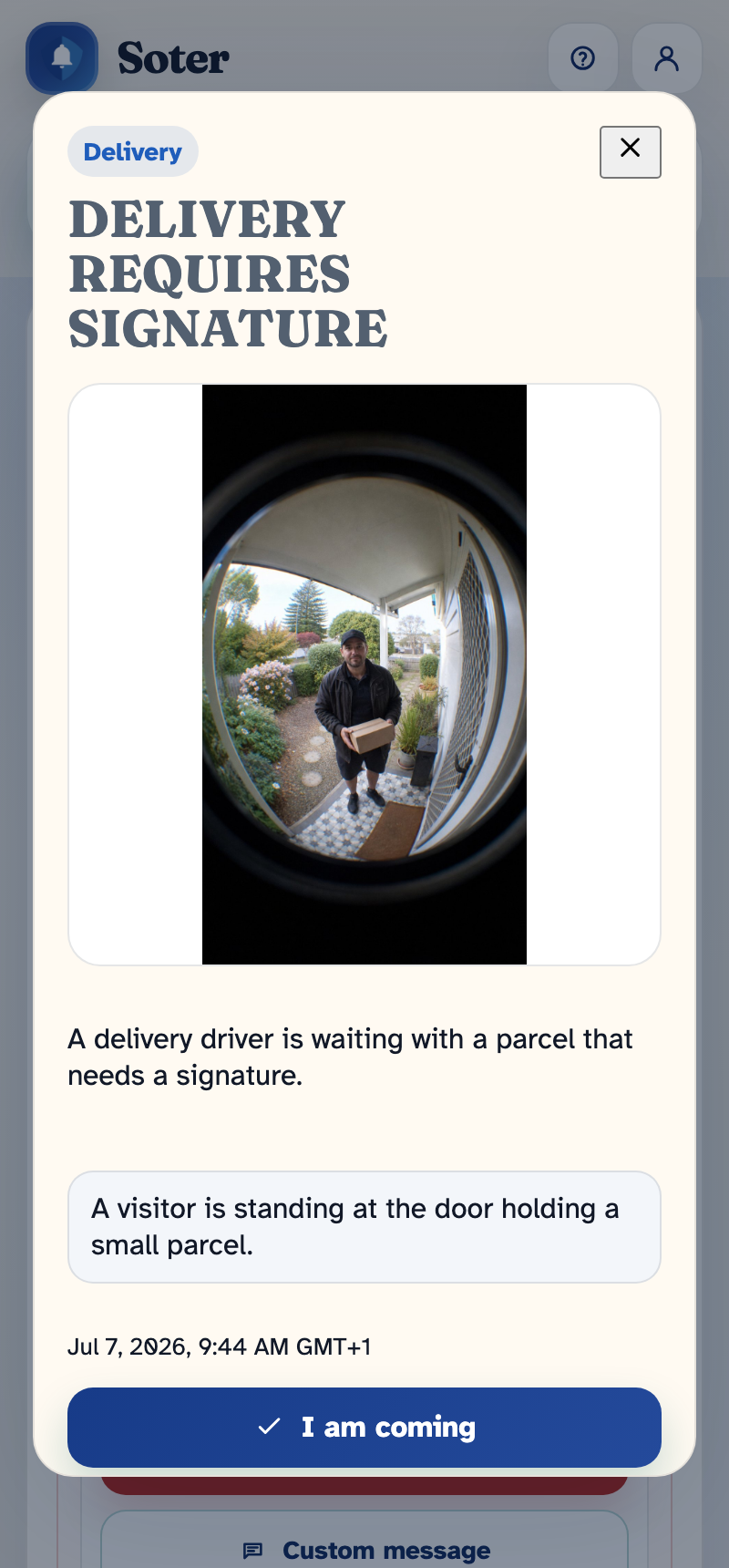
Tap View details on any alert to see the full picture before you answer — including Soter's description of the scene:
If nobody responds: escalation
Every alert has a Level 1 list (who gets told first) and a Level 2 list (the backup). If nobody in Level 1 responds within a set escalation delay the alert moves to Level 2. Who sits at each level, and how long the delay is (the setting is in seconds, so 300 = 5 minutes), is set per visit type in the doorstep policy.
Dismissing and stale alerts
If a visit resolves itself (the visitor left, or someone answered the door in person), you can Dismiss the alert. Households can also set Dismiss stale alerts after (15 minutes to 24 hours) in Settings, so old alerts don't pile up for people who were away from their phone.