Occupant app guide
Getting started
Signing in, putting the app on your phone, and finding your way around the five tabs.
What the occupant app is
The Soter occupant app is a web app that runs in any modern browser — on your phone, tablet, or computer. There is nothing to download from an app store. It connects to the Soter unit at your household's front door and is shared by everyone who helps look after the doorstep: the occupant, family members, and carers, each with their own sign-in.
Signing in
- Open app.intermentis.com in your browser.
- Enter the email address and password for your Soter account. Your account is created for you — by Intermentis during setup, or by someone in your household with admin access. If you don't have a sign-in yet, ask your household admin or contact support.
- Stay signed in on your own devices so alerts can reach you quickly.
If you help look after more than one household (for example, a carer supporting two clients), use the Active household selector at the top of the Settings page to switch between them.
Putting it on your phone
The app works best installed on your home screen, where it behaves like a normal app and can show notifications:
- iPhone / iPad: open the app in Safari, tap the Share button, then Add to Home Screen.
- Android: open the app in Chrome, tap the menu (⋮), then Add to Home screen (or Install app).
When you first sign in, allow notifications when asked — that's how door alerts reach you when the app is closed.
The five tabs
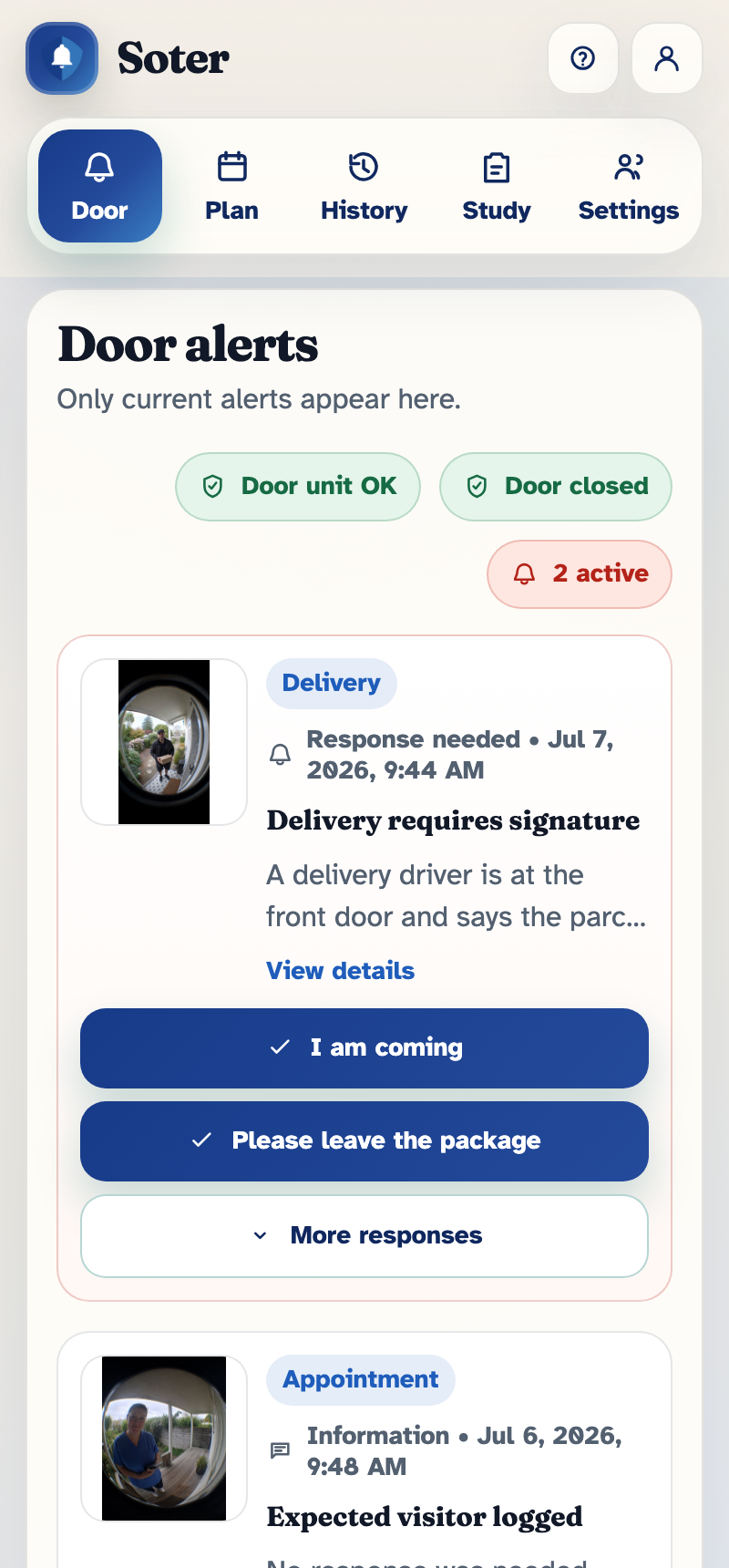
| Tab | What it's for |
|---|---|
| Door | Respond to current alerts — someone is at the door and Soter wants your decision. |
| Plan | Appointments and temporary PINs for expected visitors. |
| History | Review past doorstep interactions: who came, what was said, what happened. |
| Study | Pilot households only: short surveys and visit logs that feed the trial. |
| Settings | Household profile, operating mode, app access, the doorstep decision policy, and known visitors. |
Each tab has its own chapter in this guide.
Making it comfortable to use
In Settings, each person can adjust the app for themselves:
- Text size — Standard, Large, or Extra large, applied across the whole app.
- Alert sound — whether incoming door alerts play a sound on your device.
- Push notifications — can be turned on or off per person; if off, you can still open the app and see everything, you just won't be interrupted.
If something looks missing
The app deliberately hides pages you don't have permission for. If you expect to see a tab (say, History) and it isn't there, someone with Full admin access in your household can grant it in Settings → Occupant app access — see the App access chapter.