Occupant app guide
Household settings
The household profile, the doorstep unit's voice and triggers, delivery details, and the door sensor — everything under Settings, explained.
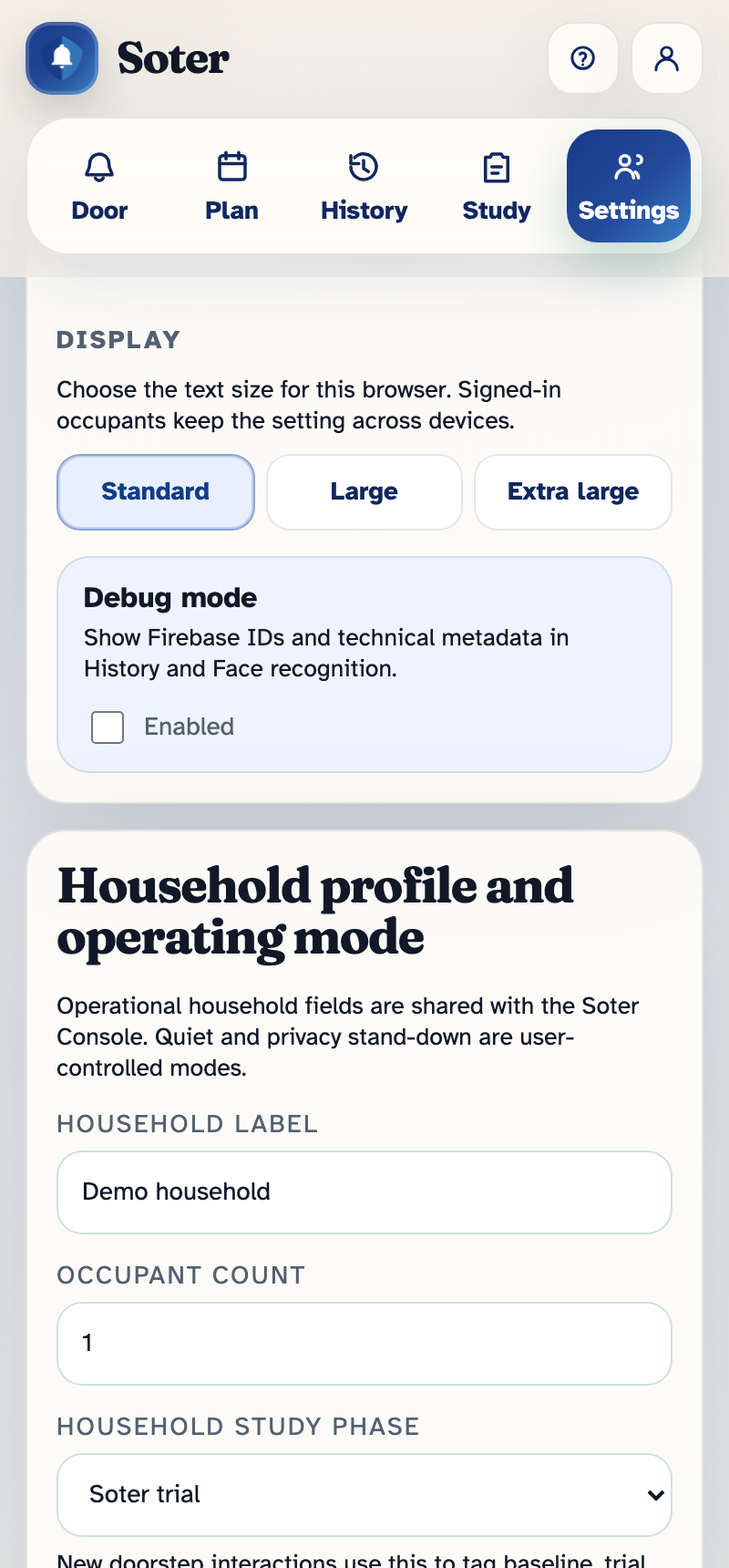
Household profile
The basics that identify your household and shape how Soter behaves:
- Household label — the name shown across the app and in alerts ("Rose Cottage").
- Occupant count — how many people live at home; helps Soter phrase things sensibly.
- Household study phase — pilot households only: tags new interactions as baseline or trial for the research team.
- Notes — anything the household wants installers and supporters to know.
Voice and greeting
- Default Soter voice — pick the voice the doorstep unit speaks with. Choose the one that feels right for your household.
- Custom doorstep greeting — replace the standard greeting with your own opening line.
Deliveries
These two settings power the delivery verification in your doorstep policy:
- Place to leave packages — where couriers are directed ("beside the planter, under the porch").
- Delivery recipient names — the names parcels arrive addressed to. If the courier says a name on this list, the delivery verifies; a delivery for a stranger's name won't.
Helping Soter hear correctly
Real doorsteps have accents, local place names, and multiple languages. These hints make recognition noticeably better:
- Recognition region and Expected languages — tune speech recognition for your area and the languages visitors actually use.
- Names Soter may speak — people and terms Soter is allowed to say out loud.
- Transcription-only names — names Soter should recognise in speech but never say back (privacy for household members).
- Local words or terms — suburb names, organisations, anything visitors say that a generic system would mishear.
- Recognition notes — free-form notes for the support team about recognition quirks.
When Soter wakes up (triggers)
- Trigger mode — what starts an interaction: Face detection (Soter notices a person approaching), Doorbell button (the visitor taps the button on the Soter screen), or Both.
- Trigger schedule overrides — switch modes on a schedule. The classic: a doorbell-only window every day 21:00–07:00, so a possum or a late passer-by doesn't start a conversation at 2 am. Each window has days, start and end times, and a note explaining why.
- Minimum face size and consecutive detections — advanced tuning for how close and how definite a face must be before Soter engages. Larger values mean fewer false triggers from the street. The defaults suit most doors; change with support's help.
Face detection also pauses itself automatically when the camera view is too dark to be reliable - it switches to doorbell button mode.
The doorstep screen
Doorstep video display sets what the visitor sees on the unit's screen alongside the conversation: no camera view, a small video, or full-screen video with translucent or transparent conversation cards.
Alerts housekeeping
Dismiss stale alerts after — Off, 15 minutes, 1 hour, 4 hours, or 24 hours. Old unanswered alerts clear themselves so the Door page always reflects now.
Door units and indoor units
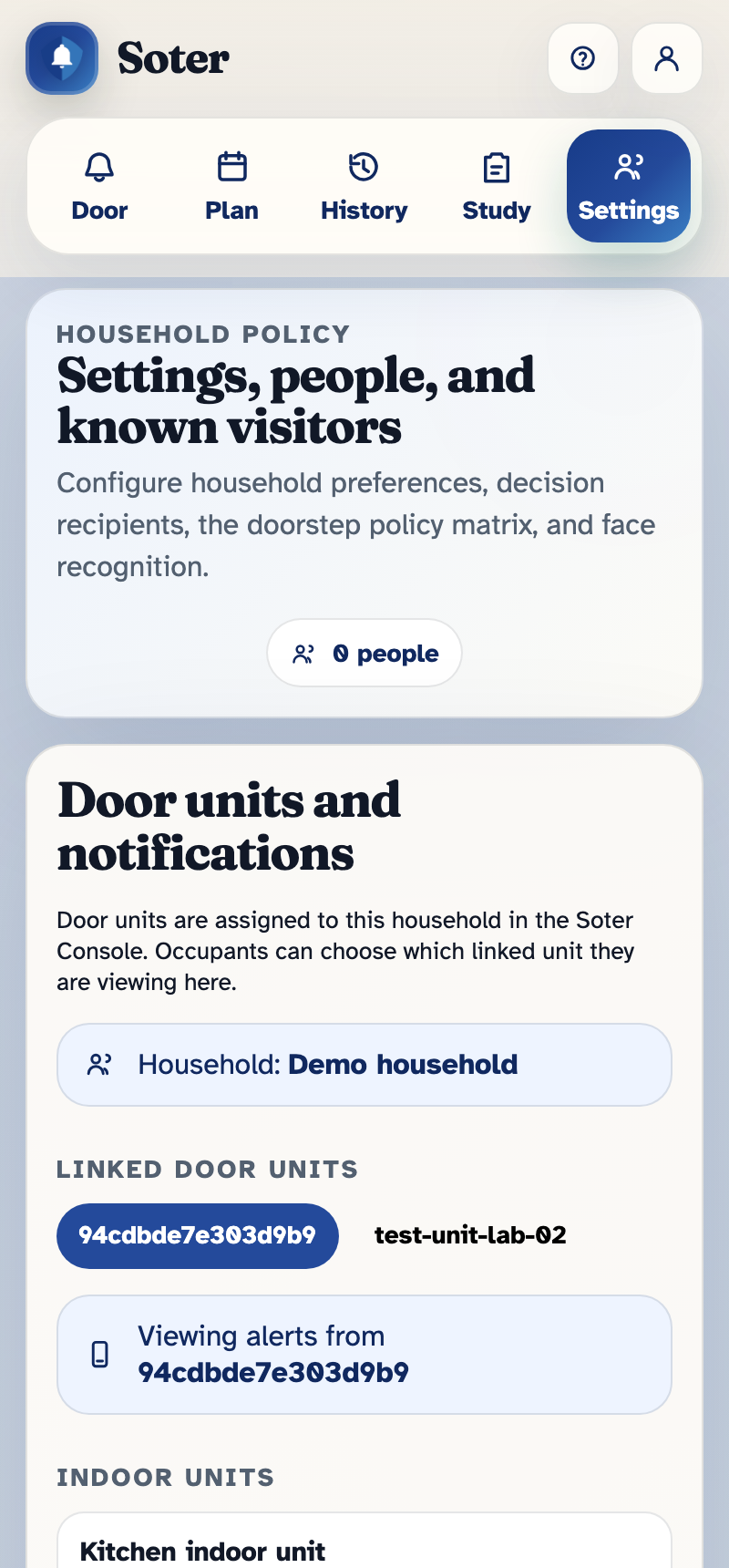
The top of the Settings page shows the equipment linked to your household: the doorstep unit (or units) at the door, and any indoor units around the home. You can see at a glance whether each unit is online, its battery state, and when it last checked in.
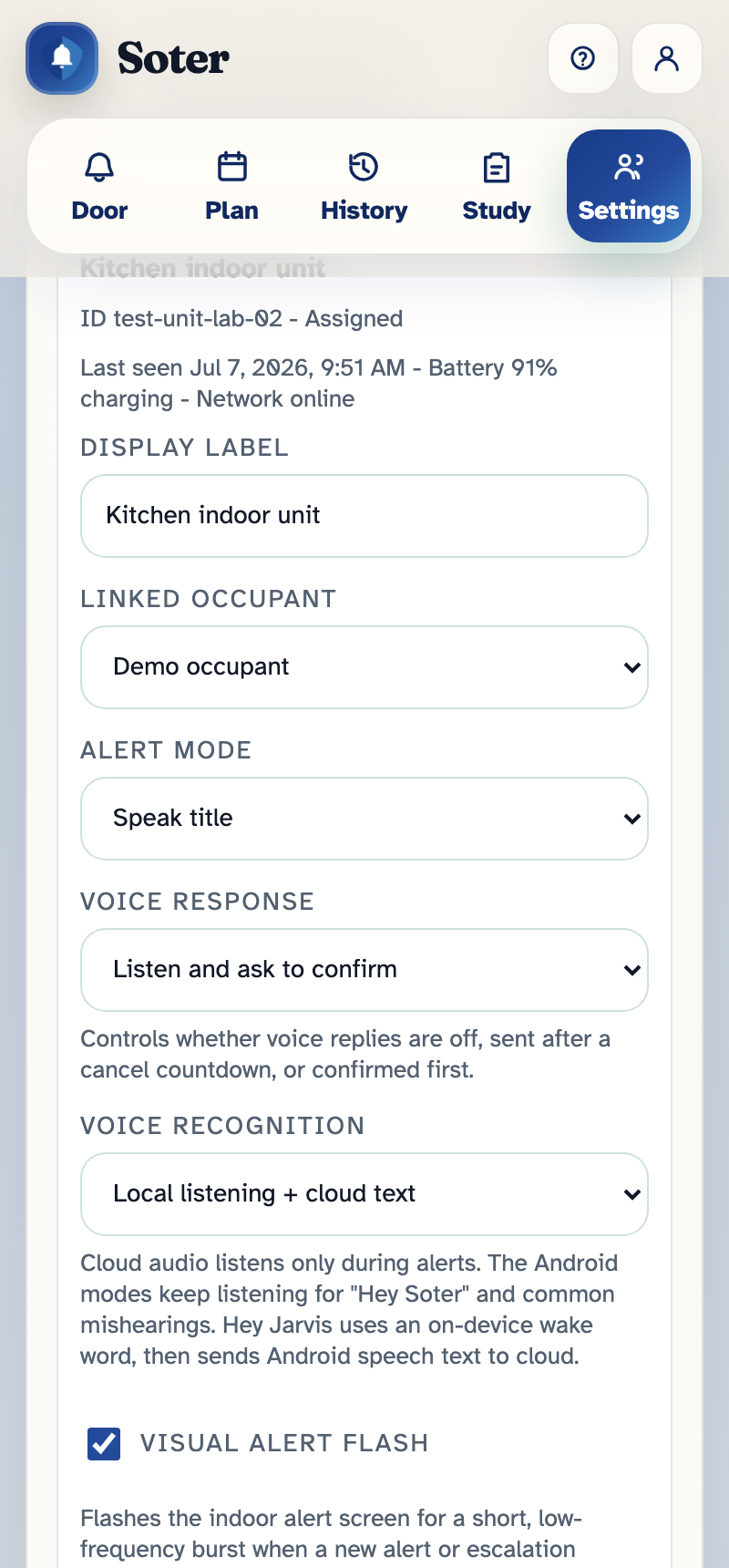
Each indoor unit has its own settings — where it sits, which occupant it belongs to, how it announces alerts (for example speaking the alert title aloud), whether it listens for voice responses, and a visual alert flash for occupants who won't hear a chime:
The door sensor
Households with a door sensor fitted get an extra layer of awareness — Soter knows when the door actually opened:
- Left-open seconds — how long the door may stand open before a safety alert is raised.
- Level 1 / Level 2 recipients and escalation delay — who hears about sensor alerts, with the same two-level escalation as door alerts.
- Sensor events are smart about context: the door opening after an expected, verified visitor is treated as the visit being handled, not as a problem — and quiet stand-down suppresses sensor alerts entirely (see Operating modes).
- The sensor's technical fields (sensor ID, MAC address, keys) are filled in at installation — you shouldn't need to touch them.
Who can change all this
Seeing these pages requires Can view settings pages; saving changes to household-wide settings requires Full admin access — except the operating mode, which has its own permission.